
For instructors
Instructor guide
Everything you need to run a class with Floorwise: setting up, due dates, grading, accommodations, written work and getting grades into your LMS. Start with the sample syllabus (Word) and make it yours. Screenshots show a sample class with fictional students.
- Set up your class
- How grading works
- Extensions, excused work and retakes
- Written assignments
- What students see
- Announcements
- Getting grades into Canvas or Blackboard
- End of term
- Academic integrity
Set up your class
- Sign in. Floorwise emails you an invitation. Create your password, then open Class in the top menu. Teaching more than one course? Switch between them at the top of the dashboard.
- Name the term and set due dates. On Schedule and grading, enter the term name and its first and last days of class. Use quick fill to set module due dates weekly from a date you choose, then adjust any date for breaks and exams.
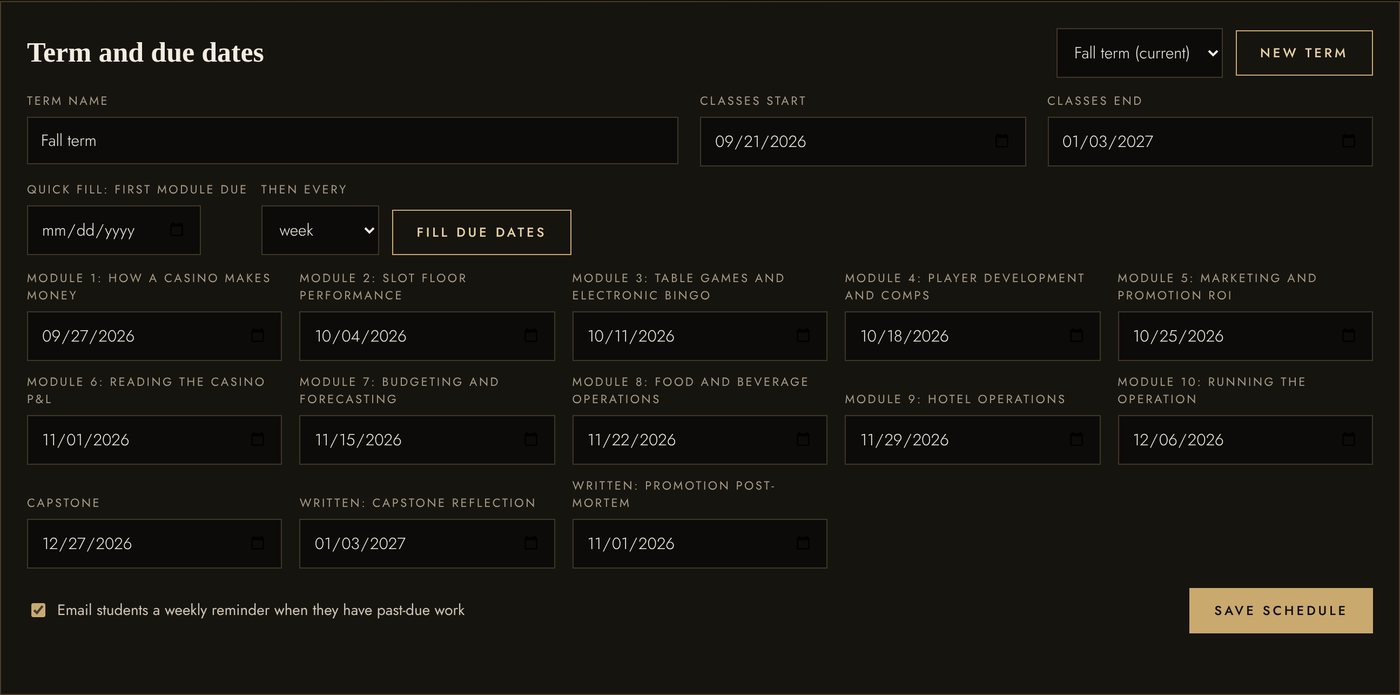
Term and due dates, on Schedule and grading. Quick fill sets weekly dates; adjust any of them. - Choose what counts. Pick the modules you're assigning and set the weights for knowledge checks, case files and drills, the capstone and written work. They must add to 100%.
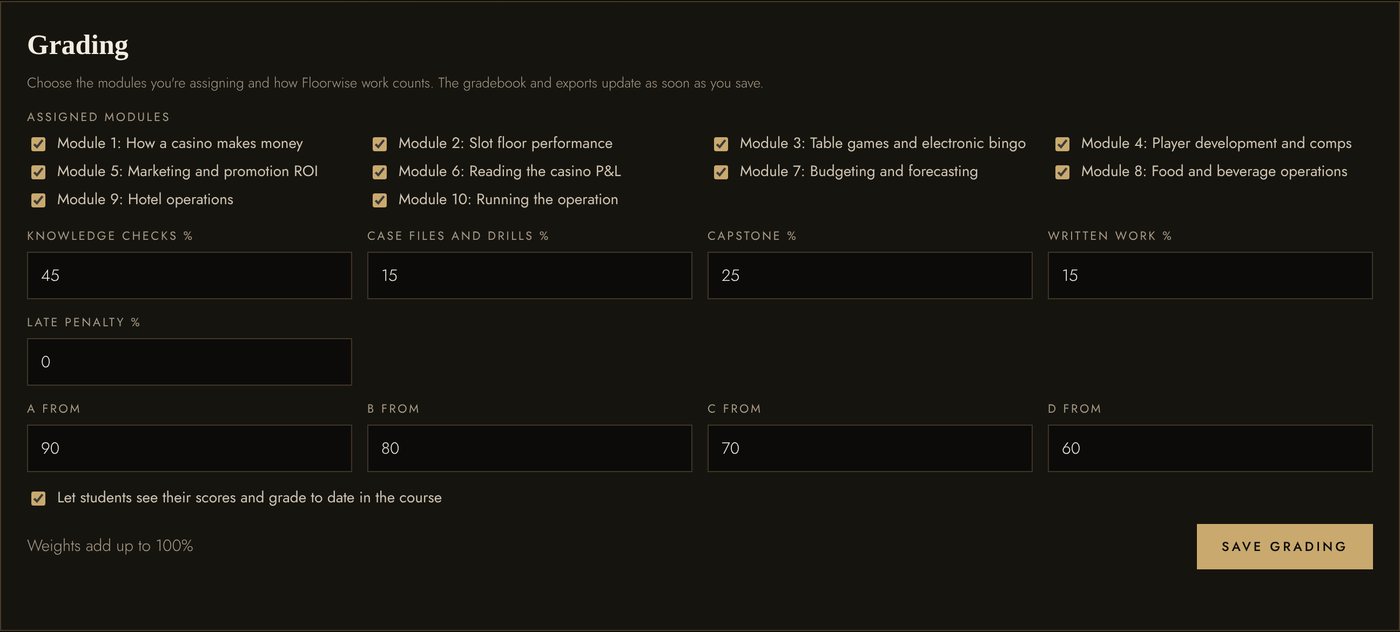
Grading: choose modules, weights, a late penalty and letter cut-offs. - Add students. On Roster, turn on the join link and post it in Canvas, Blackboard or your syllabus. Each student enters their name and school email, confirms it from their inbox, and lands on your roster with their own login. You can limit it to your school's email domain and approve each student first. Prefer to do it yourself? Upload the roster file from Canvas, Blackboard or your registrar (or paste it), check the list Floorwise read back to you, then add everyone at once.
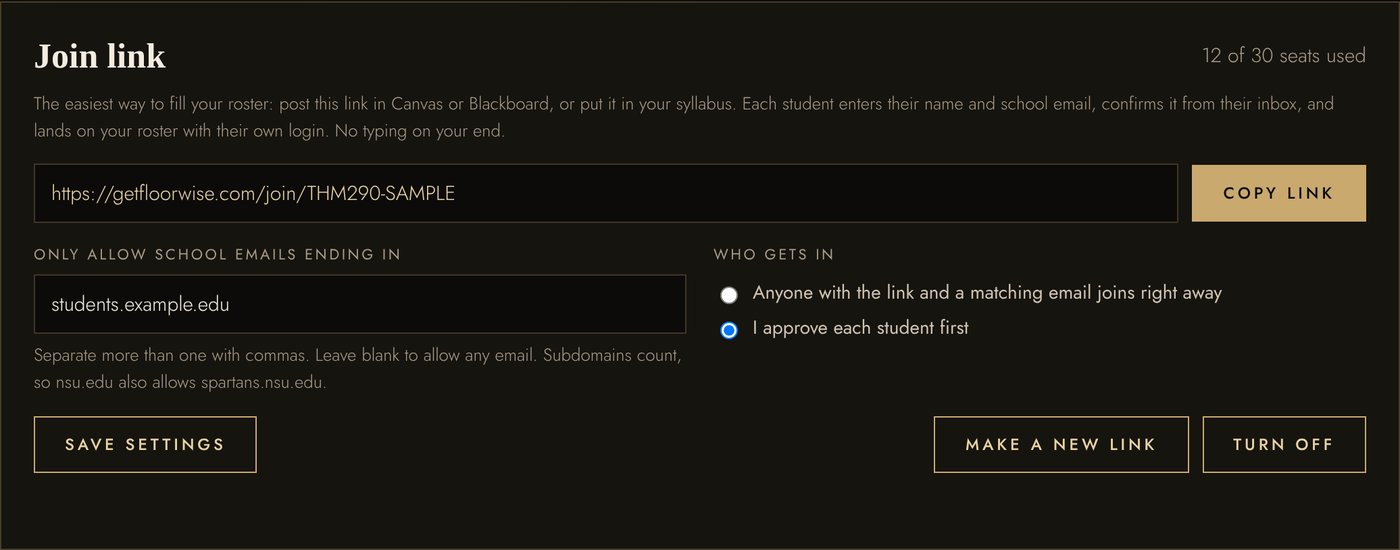
The join link on the Roster tab. - See what students see. Student view, under the course title, opens the course with the class panel exactly as a student sees it: due dates, announcements, grades and written work.
How grading works
- Knowledge checks: each module ends with eight questions. The student's first answer to each question is graded; they can keep practicing without changing the score.
- Case files and drills: 50 points for finishing the module's case file and 50 for its judgment drills.
- Capstone: 30 Days at the Meridian, scored on judgment points out of 45.
- Written work: scored by you, 0 to 100.
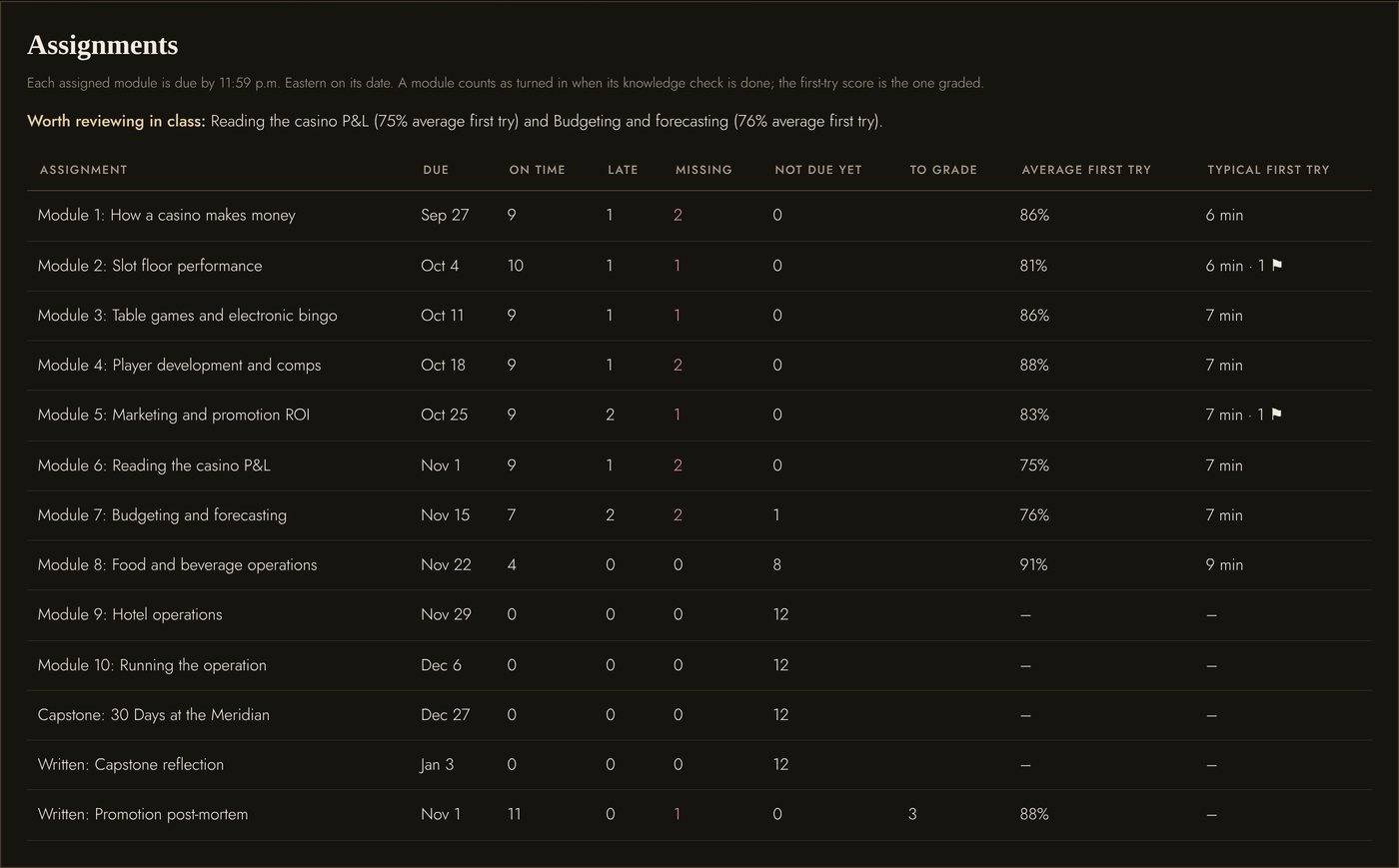
- Due times: 11:59 p.m. Eastern on the due date. Work finished later is marked late, with an optional late penalty you set. Work not done by the due date is marked missing and scores 0 until it's done.
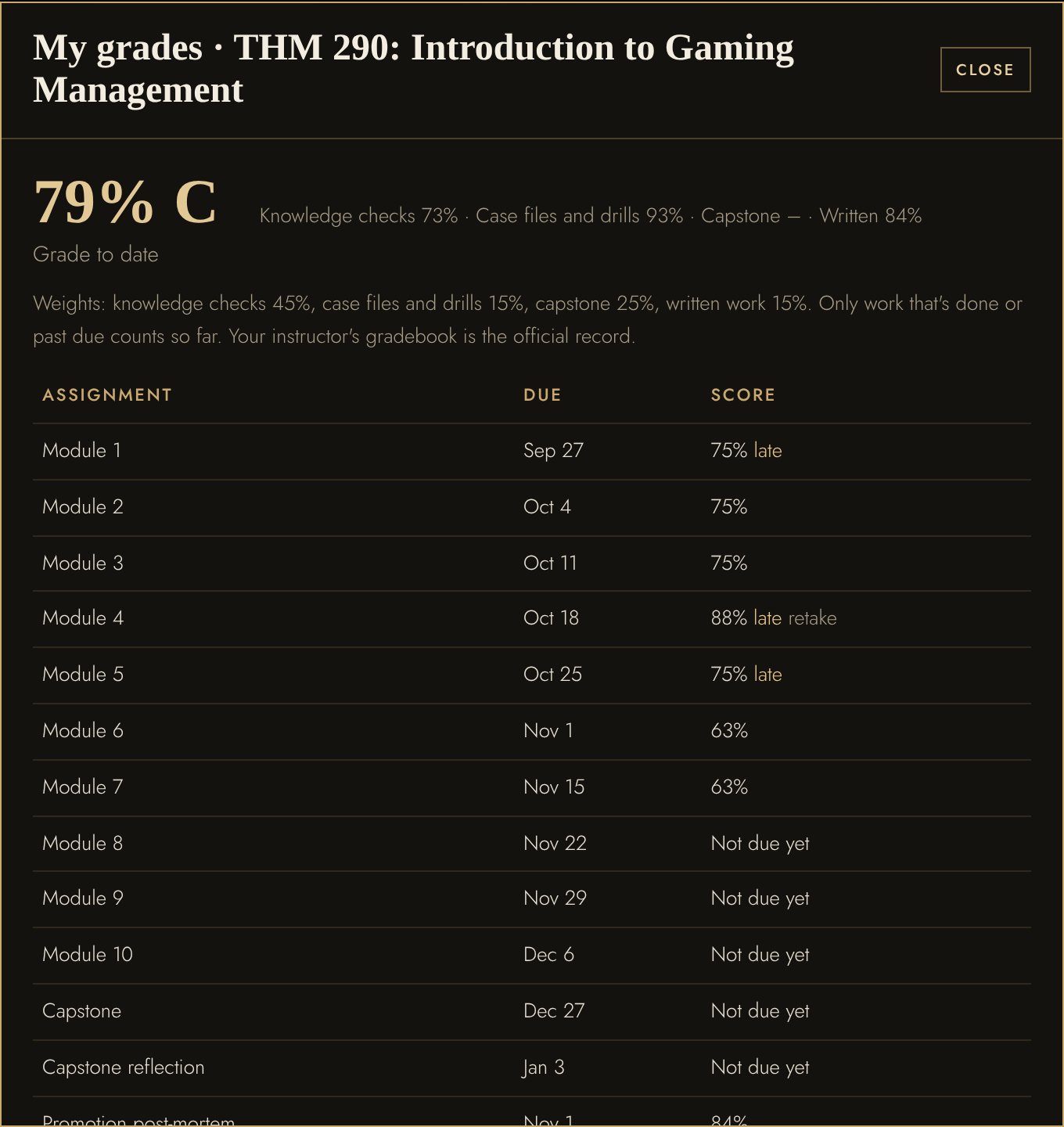
- Grade to date: only work that's done or past due counts, so a mid-term grade reflects what's been assigned so far.
The gradebook marks late, missing and excused work, and a flag (⚑) on any knowledge check whose first attempt took under 90 seconds. Open a student's row for turn-in times, lessons completed and time in the course.

Extensions, excused work and retakes
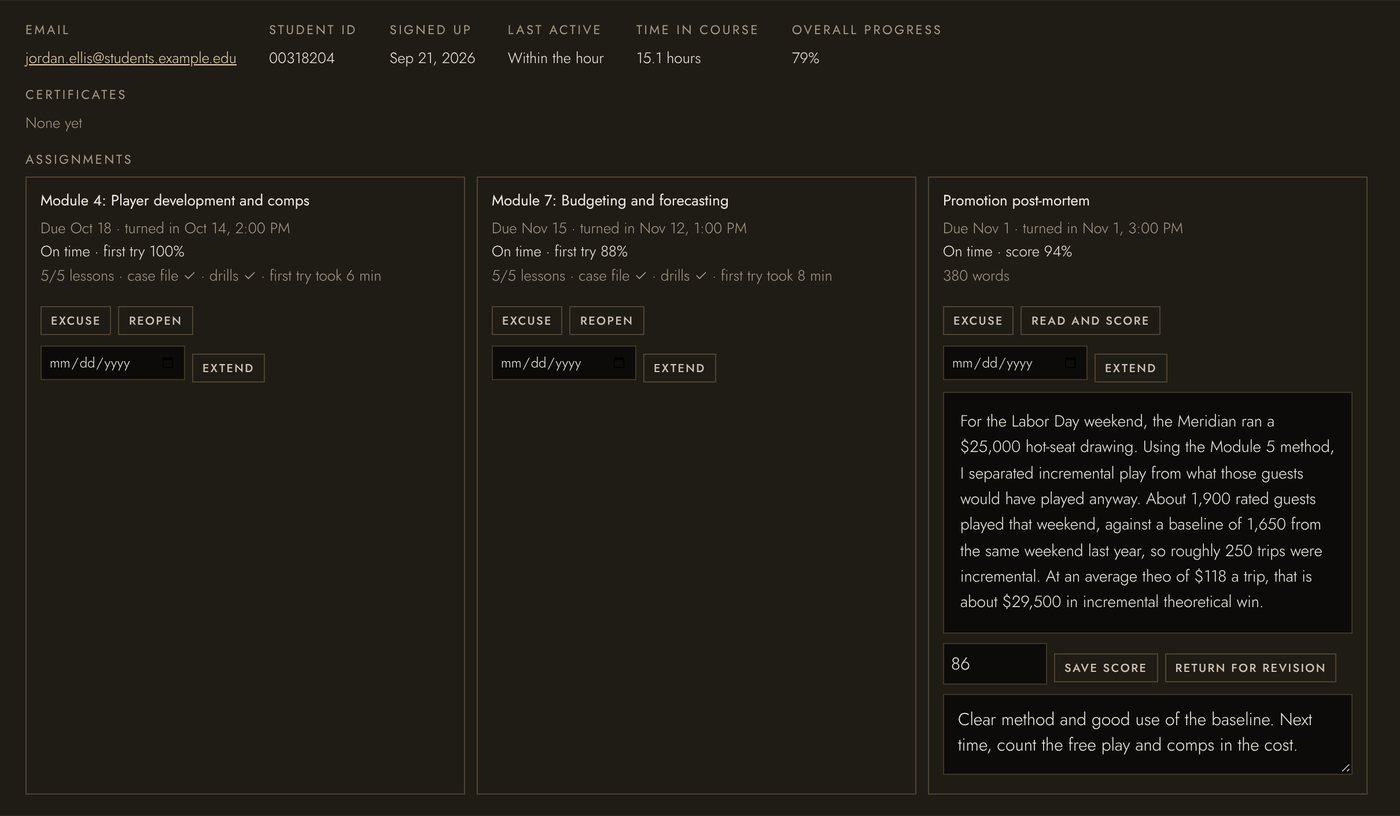
Open a student's row in the gradebook. For each assignment you can:
- Extend the due date for that student only. Their late and missing marks follow the new date, and they see it in the course.
- Excuse it, so it drops out of their grade.
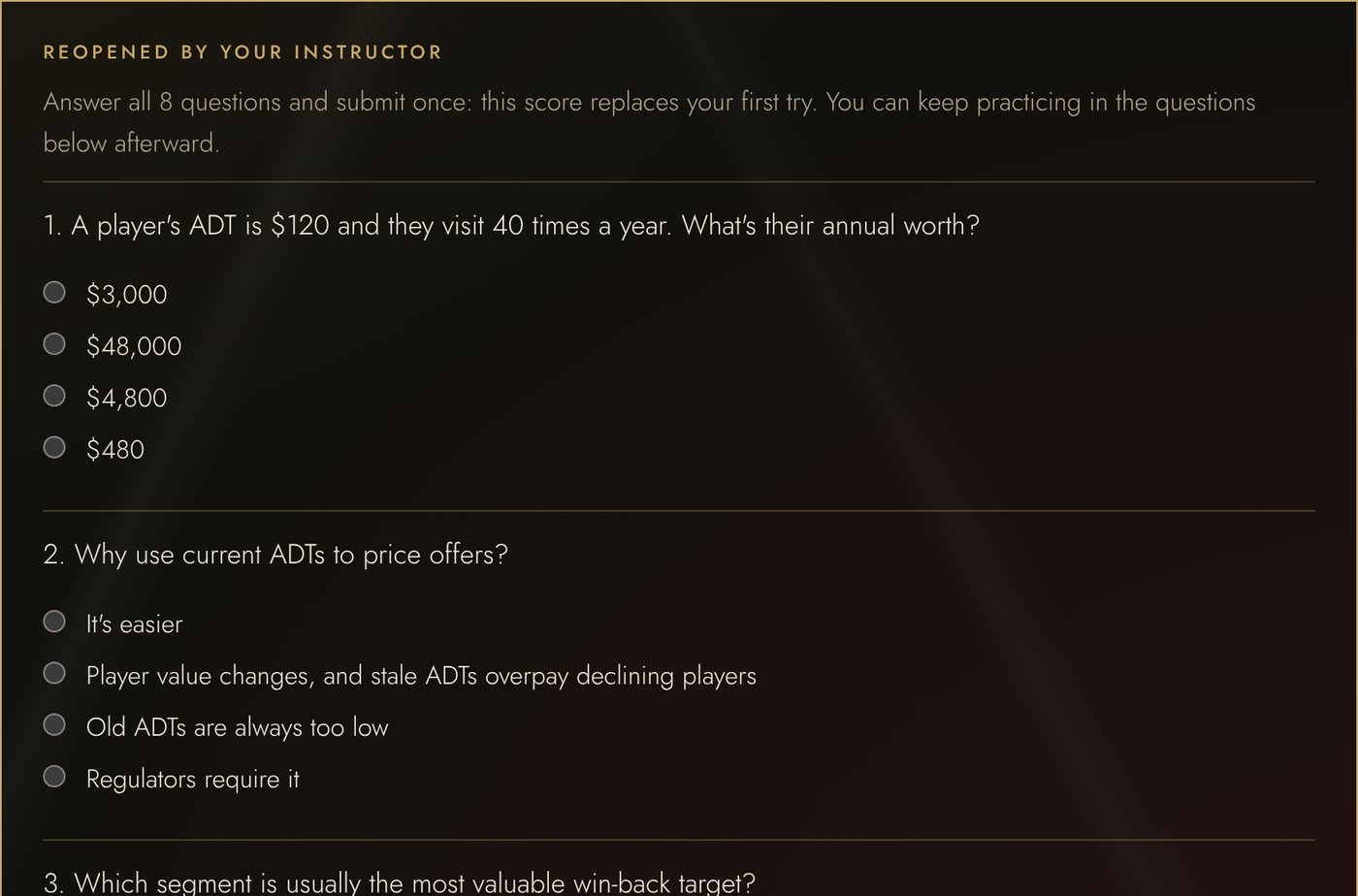
- Reopen a knowledge check after a technical problem or an absence. The student sees a one-time graded retake of all the questions, and that score replaces their first try. You can see both.
Written assignments
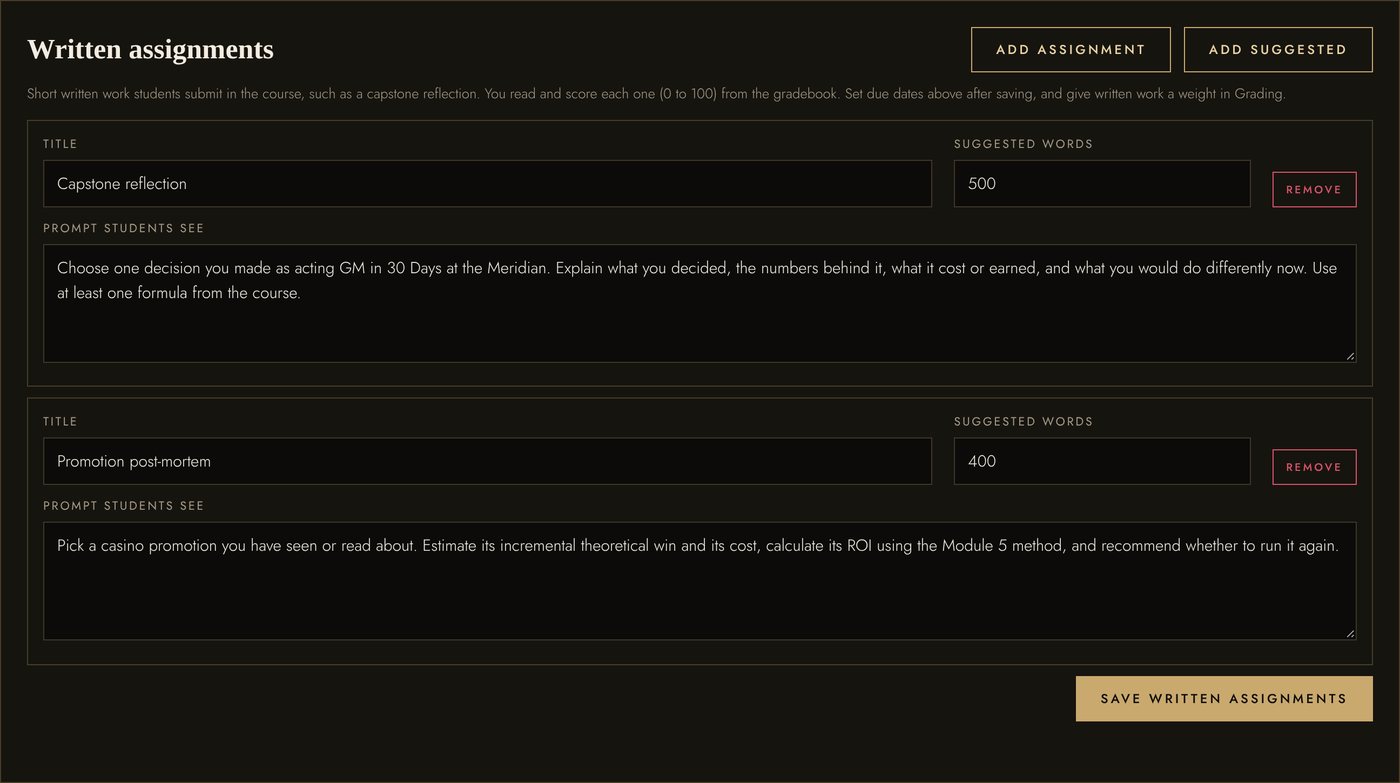
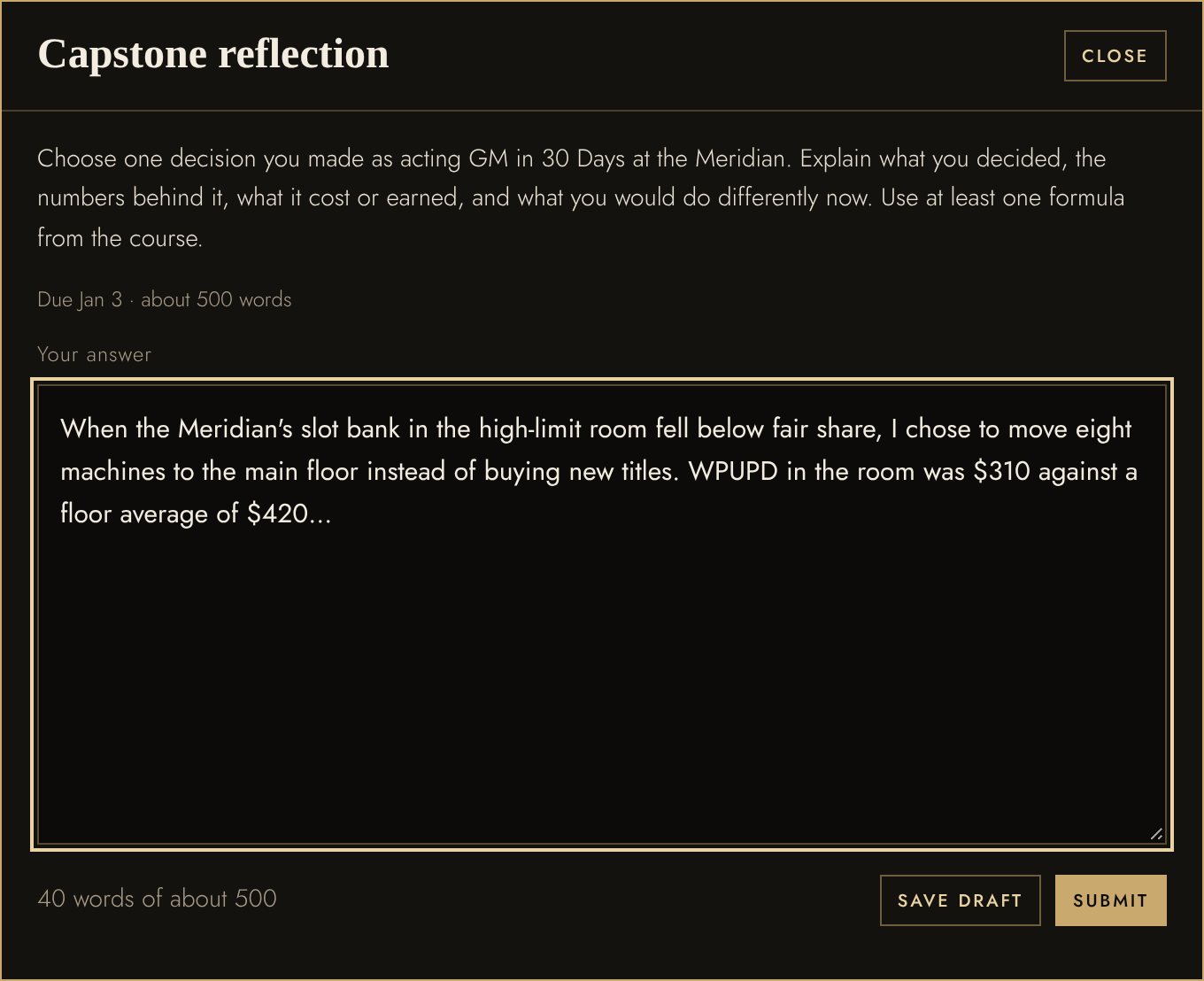
On Schedule and grading, add written assignments, or start from the two suggested ones: a capstone reflection and a promotion post-mortem. Give each a due date and give written work a weight. Students write and submit in the course. Submissions appear in the gradebook marked "to grade"; open the student's row, choose Read and score, enter a score and optional feedback. You can also return a paper for revision; the original submission time still counts for lateness.
What students see
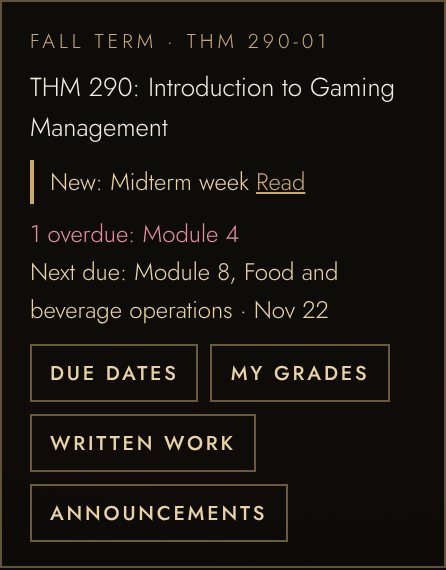
In the course menu, each student sees their class, term and section, the latest announcement, anything overdue and what's due next. From there they can open every due date, their written assignments and, unless you turn it off, My grades: their scores and grade to date, calculated the same way as your gradebook. Students with past-due work get one reminder email a week, which you can turn off.
Announcements
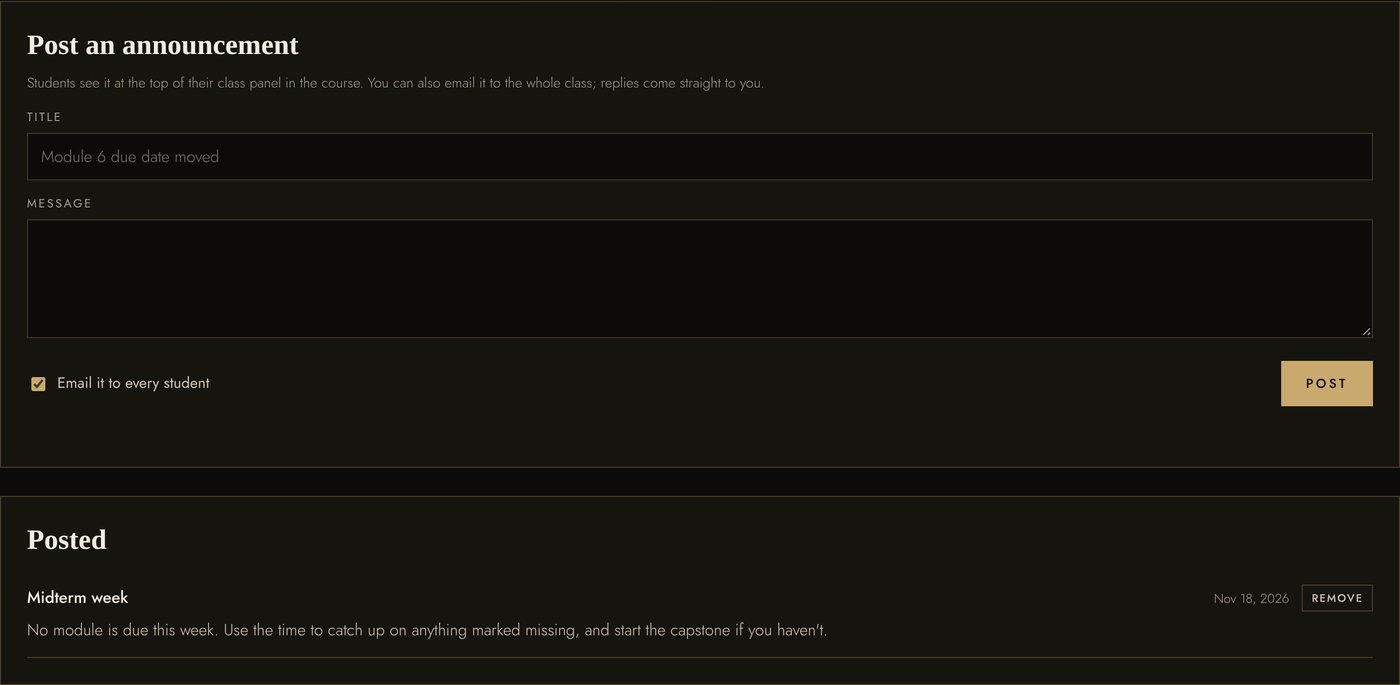
Post on the Announcements tab. Students see it at the top of their class panel, and you can email it to the whole class at the same time. Replies come straight to your email.
Getting grades into Canvas or Blackboard
On the gradebook, choose an export. Canvas gives a gradebook import file matched on SIS ID and login, with a column for the grade to date and each assignment. Blackboard gives a Grade Center upload file; it uses the part of each school email before the @ as the username, so check it against your roster. Excel gives every score, status, turn-in time and first-try time for Moodle, D2L or your records. Print or PDF prints the gradebook as shown. Filters (a section, missing work) apply to every export.
End of term
When the term's last day passes, grades become final: work students finish afterward doesn't change them, and reminders stop. Students keep their course access and certificates. For the next term, add a new term on Schedule and grading; students are tagged by term, and you can switch terms at the top of the dashboard.
Academic integrity
Questions appear in a different order for each student, only the first try counts, and you can see how long each first attempt took. Retakes happen only when you reopen a check. Floorwise is an open-book, self-paced course; for proctored assessment, use your own exams alongside it.
Questions or a problem? Email hello@getfloorwise.com; we answer within one business day.